

Creating pre-sets for Stream Deck control of Barco e2 on Mac
Introduction
Below is a method to create control shell scripts for controlling Barco e2 s3 or eX from the Elgato Stream Deck interface. This can add a number of easily accessible hot keys to your control laptop. You can also find more information about the Json commands used in the shell scripts from page 573 of the EM Manual (v5.2)
Create a .Sh file
First task, copy the text below in to a new text file (using TextEdit or equivalent)
#!/bin/bash

curl -d '{"params": {"presetSno": 1.00, "type": 0}, "method":"activatePreset", "id":"1234","jsonrpc":"2.0"}' -H "Content-Type: application/json" -X POST http://192.168.0.175:9999/data

sleep .1

curl -d '{"params":{}, "method":"allTrans", "id":"1234", "jsonrpc":"2.0"}' -H "Content-Type: application/json" -X POST http://192.168.0.175:9999/data
Update the text to the address of your device
Change the ip address (in red) to that of your e2/s3/eX (standard is 192.168.0.175/176/177 respectively)
change the pre-set number (in green) to that of the pre-set you want to recall.
Save the file as a relevant name, for example “P.Set1.txt”
Make it a .command file
Next change the extension to “.command” (“P.Set1.command”) you will be asked if you want to change the extension, select, change to “.command”
Change your Terminal preferences
Next open a terminal window (cmd+spacebar “terminal” Rtn)
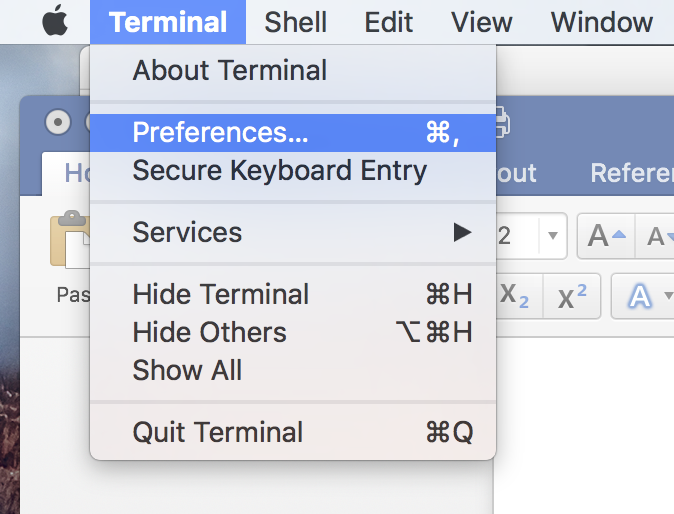
Once open click Terminal (top left corner), then Preferences (or Cmd+,).
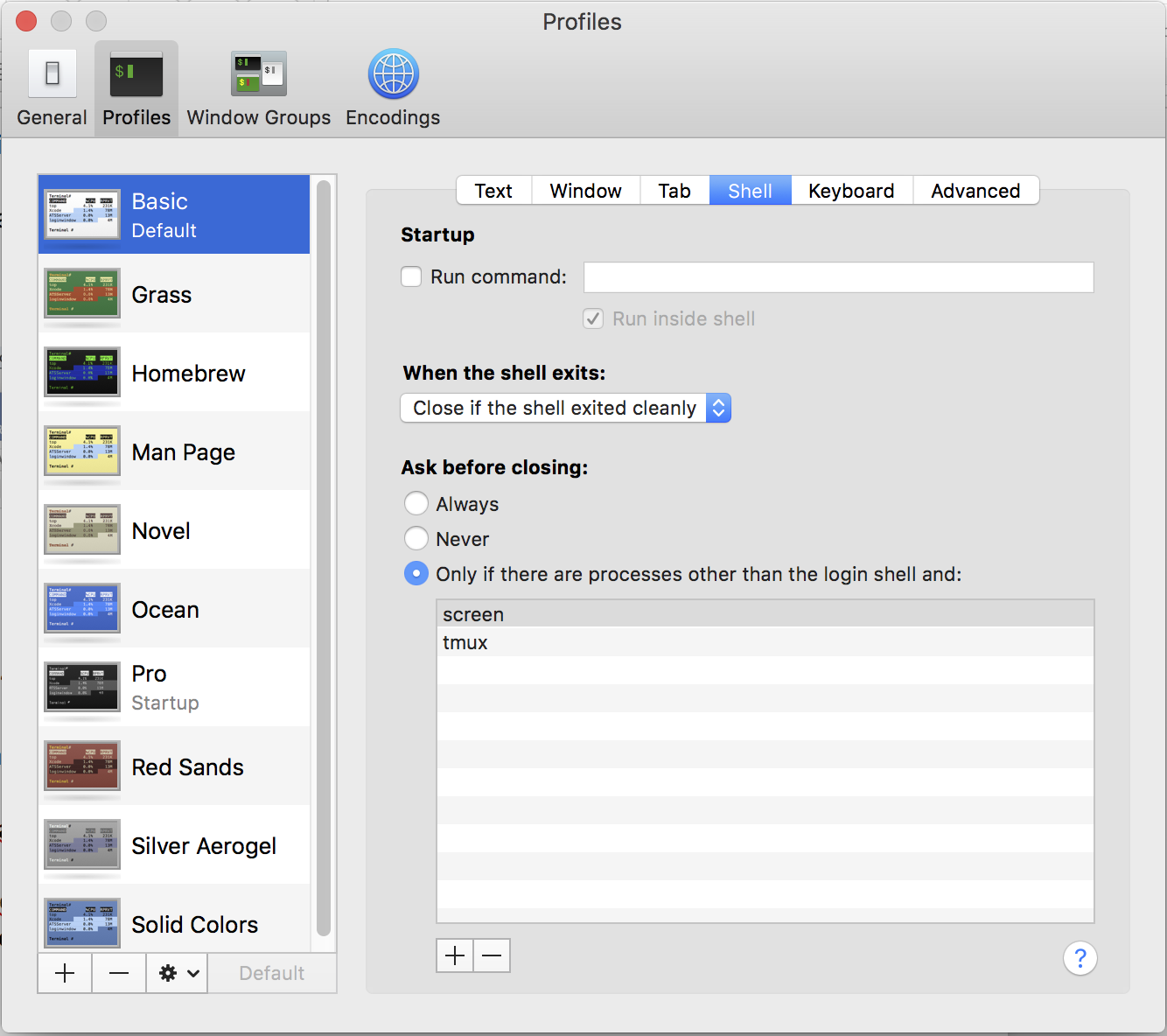
Next select profiles, then with in that select Shell.
Click on the drop down “When the shell exits:” then select “Close if the shell exited cleanly”
Change the access rights of your file.
Open a terminal window and type
chmod a+x (yourscriptname)
Replace (yourscriptname) with the root & name to your command file. (The easiest way to do this is drag the file from a finder window & drop it in the terminal window.)
Hit return, if the window reports no errors then you have updated the rights of your file.
Stream Deck interface
Next open the Stream Deck interface, (you can download the latest version here) on the right hand side under the system tab you’ll see a rocket icon, drag this to a free button, name the button as you wish & then click choose & point it towards your file.

Finally
That’s it, you should now see the button on your stream deck console, hit that button & it will fire the file, you’ll see it briefly flash on the screen of your mac & then close again if all when well.
You can repeat this process for as many buttons as you require.
Thanks to Dean Turner for the original complete .sh script