

Starting out with the Event Master Software
Downloads
First thing is to download the latest version of Event Master. This can be done from the Barco website if you want the latest released version.
https://www.barco.com/en/support/e2/drivers
Ragged edge
If you want to try the Event Master current beta version then that can be downloaded from the Barco ftp site.
It’s advised that this shouldn’t be used on live shows.
Use an ftp manager like Filezilla to do this, or on a mac you can also use Finder “Goto to Server”. There are no credentials needed, so either leave blank or choose guest as appropriate. I’ve found a downloader to be faster & more consistent.
https://filezilla-project.org/download.php?type=client
Once you have logged onto the ftp site go to
/Products/Image Processing/E2_S3_Ex/Beta Releases in here there are 3 folders which will contain the current beta.
Install
Once you have the Event Master software you can then install it.
This will create files within a folder in Applications (Programs on Windows) called ‘ Event Master ’
NOTE: The versions are not numbered in the file name & the installer doesn’t overwrite, so be careful to manage your versions.
Emulator
If you don’t have a e2/s3/eX available & you want to test or set up the software then you will find an emulator in the Event Master folder.
/Applications/EventMaster-##/wvp_sim/wvp.exec
Start the emulator before starting the EM software. This will open a terminal (or CMD in Windows) window, you don’t have to do anything in this just make sure it runs properly. When EM starts it should then find your emulated unit. 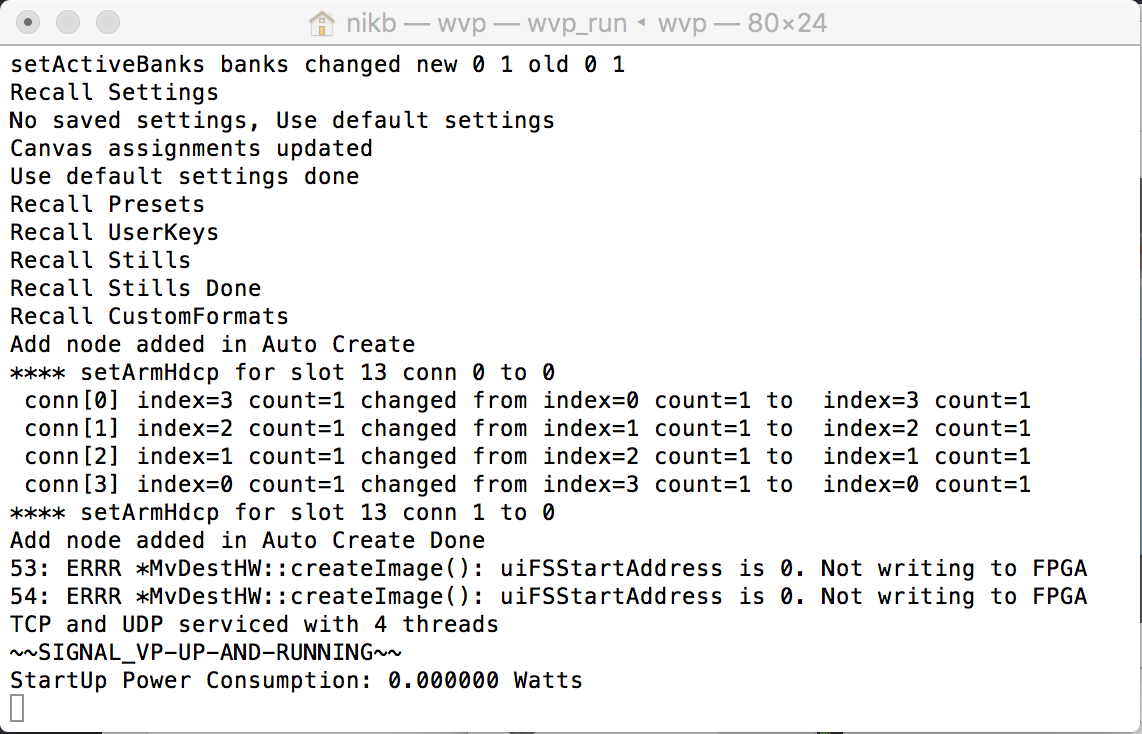
You can have a multiple versions of the emulator, they just have to be on different virtual or physical machines on the same network. The first one can be on the control machine.
If you are running the emulator on a Mac & you are not attached to a network then you will need to point your EM software at 127.0.0.1 which is the Localhost IP address.
With Windows you will need to give a fixed IP address in the network adaptor or use the self assigned one if given.
XML Configuration
If you require the machines to have different cards than the standing shipping or if you require XML files for  multiple linked machines, then a good place to make these is at the website below.
These are then changed in the folder –
/Applications/EventMaster-##/wvp_sim/wvp_9876 (where ## is the version number)
There are more details with in this folder in a readme file on how the XML is structured & how to change from one frame XML to another.
NOTE: Don’t forget to restart your emulator after changing the xml file.
If you struggle to see your emulated frame, try directly inputting the frame IP address (the network IP address of the machine its running on) directly in to the EM software.
If you’re running the emulator on a Mac then you will need to connect to ‘any’ network in order for an IP address to be assigned.
See the next entry to find out how to set up a basic show on an E2
For useful information from other sources follow this link to our downloads page